
Chapter 1
Getting started
From a fresh WordPress to a complete demo site.
Thank you for choosing Zaira, a newspaper and magazine theme for WordPress and Elementor by ThemeAdapt.
Zaira comes in two parts that work together:
The design, the page templates, the shop styles and the translations.
The Elementor widgets (Zaira Addons), header and footer templates, sidebar widgets, theme options and the demo import.
Six demos are included: food, gaming, technology, travel, crypto and newspaper. Each one also comes in Arabic with a right-to-left layout.
Read Updating Zaira first: update the theme and Zaira Core together. Your settings, pages and templates are kept.
| Item | Minimum | Recommended |
|---|---|---|
| WordPress | 6.0 | The latest version |
| PHP | 7.4 | 8.1 or newer |
| Elementor | 3.5 | The latest version |
| PHP memory limit | 128 MB | 256 MB |
| Max execution time | 60 s | 300 s (for the demo import) |
| Upload max file size | 32 MB | 64 MB |
Raising the PHP limits
Most hosts let you change these values in their control panel (look for "PHP settings" or "PHP options"). If yours does not, ask their support; it takes them a minute. To raise the memory limit for WordPress alone, add this line to wp-config.php, above "That's all, stop editing":
define( 'WP_MEMORY_LIMIT', '256M' );The demo import downloads its images from the live demo site, so your server must be allowed to make outgoing HTTPS requests. Almost every host allows this.
Every demo can be imported with one click (see Import a demo). The Arabic version of each demo has the same layout, right to left, with Arabic content.
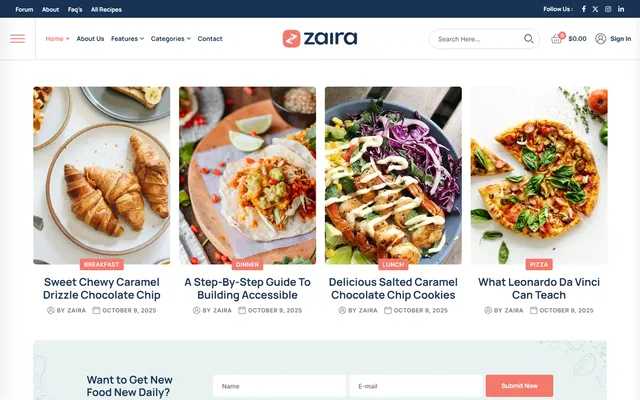
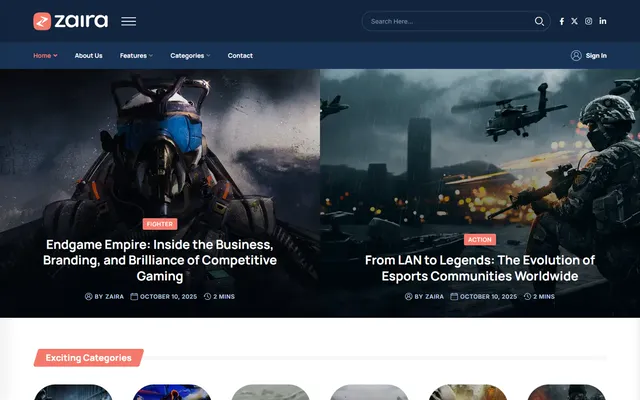
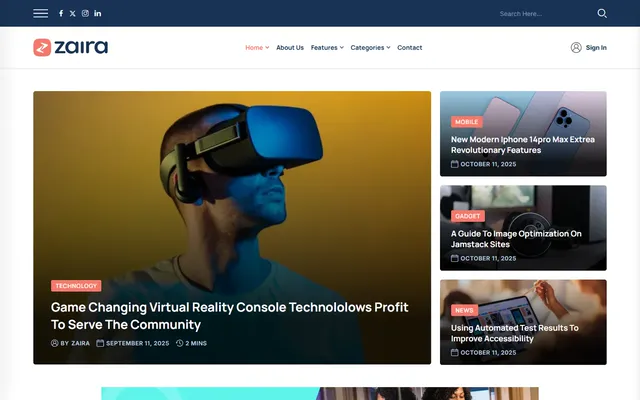
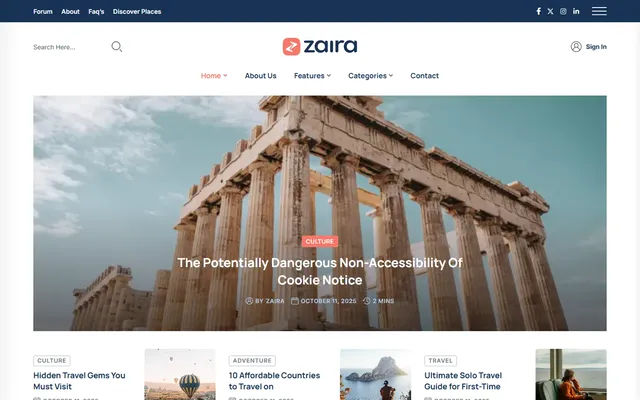

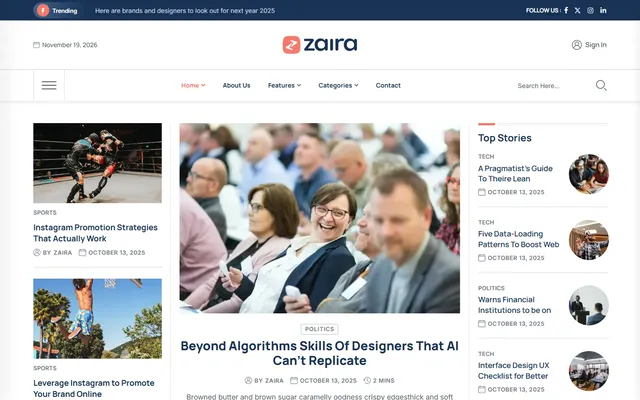
Each demo includes the pages Home, Blog, About Us, Contact and Blog Grid Layout, 12 to 15 posts, a main menu, its header and footer templates, an off-canvas panel, contact forms, sidebar widgets and its theme settings. The Food demo also includes a WooCommerce shop with twelve products.
Use the installable theme file, zaira.zip. If your download is a larger zip with documentation inside, unzip it first and use zaira.zip from it.
From the WordPress dashboard
- Open the theme uploaderGo to Appearance›Themes›Add New Theme and click Upload Theme.
- Upload zaira.zipChoose the file, click Install Now and wait for "Theme installed successfully".
- ActivateClick Activate. A notice now lists the plugins Zaira uses; continue with Install plugins.
With FTP (if the upload fails)
A message such as "The uploaded file exceeds the upload_max_filesize directive" means your server limits uploads. Unzip zaira.zip on your computer, upload the zaira folder to wp-content/themes/ with an FTP program or your host's file manager, then activate Zaira in Appearance›Themes.
Planning changes to the theme's code? Set up a child theme now, before you import a demo. Most changes need no code at all: Elementor and the theme options cover them.
- Open the plugin installerClick Begin installing plugins in the notice, or go to Appearance›Install Plugins.
- InstallTick the plugins, choose Install in the bulk actions menu and click Apply.
- ActivateGo back to the list, tick them again, choose Activate and click Apply.
| Plugin | Needed? | What it does in Zaira |
|---|---|---|
| Elementor | Required | Page builder for every page, header and footer. |
| Zaira Core | Required | Zaira Addons widgets, header and footer templates, sidebar widgets, theme options, demo import. Version 2.0 or newer. |
| Advanced Custom Fields | Required | Page settings (header, footer, breadcrumb), post format fields, category images, author links. |
| One Click Demo Import | Recommended | Runs the demo import. |
| Contact Form 7 | Recommended | Contact, call-to-action and newsletter forms of the demos. |
| Breadcrumb NavXT | Recommended | The breadcrumb trail in the page title bar. |
| MC4WP (Mailchimp for WordPress) | Optional | The Mailchimp sign-up form in the sidebar newsletter widget. |
| WooCommerce | Optional | The shop (Food demo). |
| Classic Editor | Optional | The classic post editor, if you prefer it to the block editor. |
Older Zaira versions also used the Kirki plugin. Zaira 2.0 no longer needs it: once Zaira Core 2.0 is active, Kirki can be deactivated.
The import turns a fresh WordPress into a copy of the demo you choose.
- Activate One Click Demo ImportIt is in the plugin list (see Install plugins).
- Open the import pageGo to Appearance›Import Demo Data. Each card is one demo; the "Arabic (RTL)" cards are the Arabic versions.
- ImportClick Import on a card and confirm. Keep the tab open: the images download from the live demo, which takes a few minutes.
- Visit your siteWhen the success message appears, open your site. It now looks like the demo.
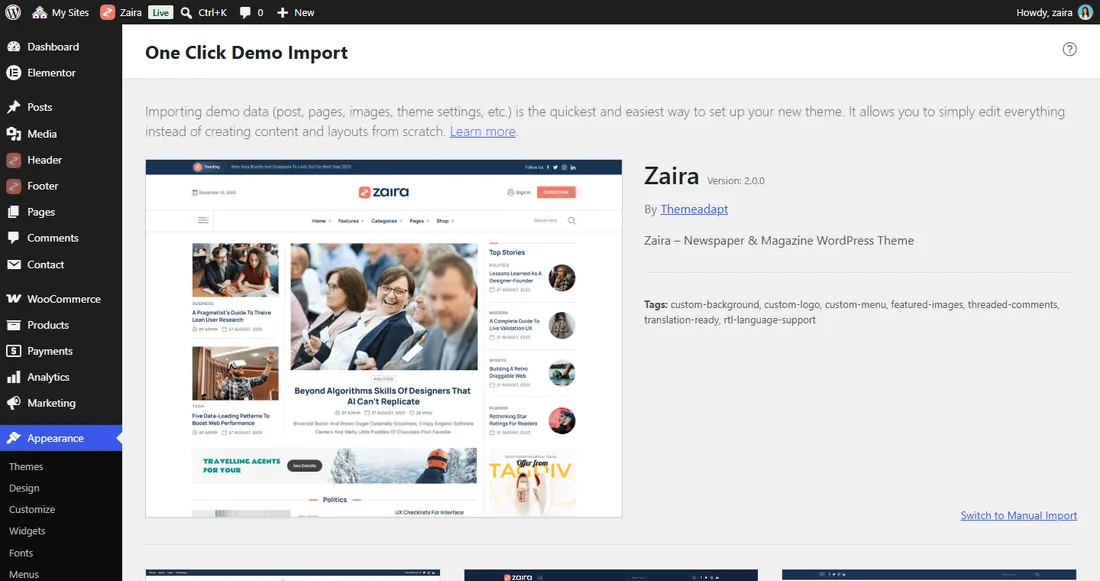
What the import does for you
- Adds the demo's pages, posts, images, menus, header and footer templates, forms, widgets and theme settings.
- Sets the homepage and the blog page, and assigns the main menu and the WooCommerce pages (Food demo).
- Changes every demo link to your site's address and sets the permalinks to "Post name".
- Sets each imported form to your site's language, with your domain as the sender.
- Links the Zaira Sidebar Newsletter widget to the imported Mailchimp (MC4WP) form.
- Removes WordPress's untouched sample content: "Hello world!", "Sample Page" and an unused "Contact form 1".
Importing a second demo adds its content to the first one. To switch demos cleanly, reset the site with a reset plugin first, then import.
The Arabic demos contain Arabic text. The layout turns right to left when the site language is Arabic (or another right-to-left language) in Settings›General›Site Language. On an Arabic site the Arabic demos are listed first.
Connect MC4WP to your Mailchimp account and choose your list in the imported form (see Forms & newsletter), and check the Mail tab of each Contact Form 7 form.
Chapter 2
Make it yours
Logo, menus, colors, fonts, header, footer and dark mode.
The import sets these for you. To change them, go to Settings›Reading, choose A static page, then pick your Homepage (the demo's "Home") and Posts page (the demo's "Blog").
The blog uses the header, footer and breadcrumb settings of the page you choose as the Posts page, and the shop uses those of the WooCommerce Shop page.
Logo in the demo header (Elementor)
All demos use an Elementor header. Open Header›All Templates, click Edit with Elementor on the header, select the Zaira Header widget and open Logo: set the logo, the logo for dark mode and the logo width. The Mobile Menu section of the same widget has its own logos. Click Update.
Logo in the theme's default header
Without an Elementor header, the theme's own header is used. Its logo is in Appearance›Customize›Zaira Theme Options›Header & Logo: Logo, Logo for Dark Mode and Logo Width (147 pixels by default).
Site icon (favicon)
Go to Appearance›Customize›Site Identity and upload a square image of at least 512 × 512 pixels as the Site Icon.
Use an SVG logo, or a PNG twice as wide as it is shown (about 300 pixels for the default width), so it stays sharp on high-resolution screens.
All site-wide settings are in Appearance›Customize›Zaira Theme Options. Each section has a one-line description, and changes show in the preview before you click Publish.
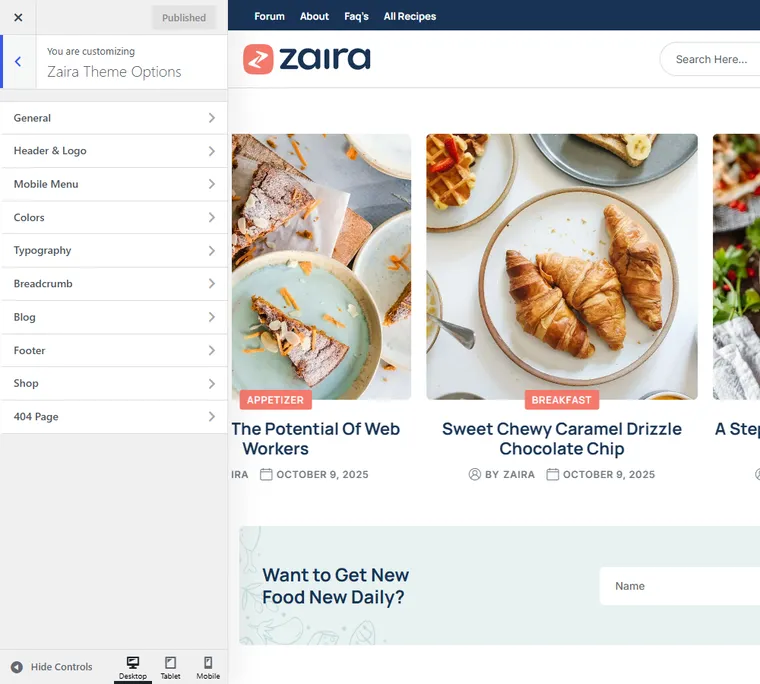
| Section | What you set there |
|---|---|
| General | Preloader and its text, back to top button, dark mode switch and dark start. |
| Header & Logo | Elementor header on or off and the header template; logo, dark logo, logo width; sticky header; header button (default header). |
| Mobile Menu | Social links in the mobile menu of the default header (Facebook, X, Instagram, LinkedIn, YouTube, Telegram). |
| Colors | Primary and secondary colors, heading and body text colors, Readable Contrast. |
| Typography | Body and heading fonts, size, line height, letter case. |
| Breadcrumb | Show the page title bar and its background color. |
| Blog | Sidebar left or right, post meta (date, author, category, comments, reading time), Read More button, share links, table of contents. |
| Footer | Elementor footer on or off and the footer template; for the default footer: widget columns, background color, copyright text. |
| Shop | Products per row on desktop and on phones. |
| 404 Page | Title, text and button text of the "page not found" page. |
Some settings apply only to the theme's default header or footer. When a demo's Elementor header or footer is active, a notice in the section says so, with a button to edit the template.
Colors
Zaira Theme Options›Colors sets the colors used across the site:
- PrimaryButtons, links, highlights
#F4796C - SecondaryDark backgrounds, second buttons
#183354 - HeadingsTitles
#183354 - Body TextParagraphs
#545E69
The Readable Contrast switch uses a darker shade of the primary color where needed, so small text meets the WCAG AA contrast level. Each Zaira widget also has its own colors in its Style tab in Elementor, including colors for dark mode; those override the site-wide colors for that widget only.
Fonts
Zaira Theme Options›Typography sets the body and heading fonts. Leave the fields empty to keep the theme fonts, Inter for text and Manrope for headings. You can also pick standard system fonts, fonts from the WordPress Font Library, or Google fonts.
Inter, Manrope and the Arabic fonts are stored on your own server. Only a Google font you choose yourself is loaded from Google.
Headers and footers are Elementor templates, so you design them like any page.
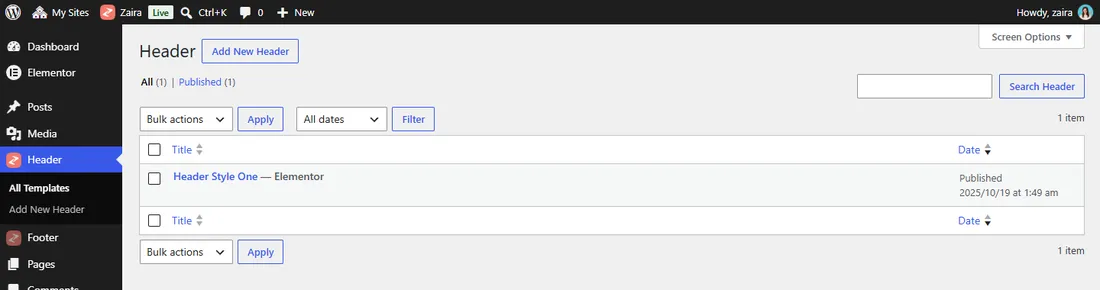
They live in two menus of the dashboard, Header and Footer, each with All Templates and Add New Template.
Edit a header
- Open it in ElementorGo to Header›All Templates and click Edit with Elementor.
- Change the Zaira Header widgetChoose one of six layouts and set the top bar, logo, menu, search, cart, off-canvas button, header button and mobile menu. Its Style tab has the sticky and transparent header switches.
- UpdateClick Update. Every page that uses this header changes.
Make a new header or footer
Go to Header›Add New Template (or Footer), give it a name, publish it and click Edit with Elementor. For a header, drag in the Zaira Header widget; for a footer, build it from any widgets, such as Menu List, Social List and Elementor's Text Editor and Image. Then choose it for the site or for one page, as below.
Choose the header and footer for the whole site
In Zaira Theme Options›Header & Logo turn on Use Elementor Header and pick the Header Template. Do the same in the Footer section for the footer. The demos have these set already.
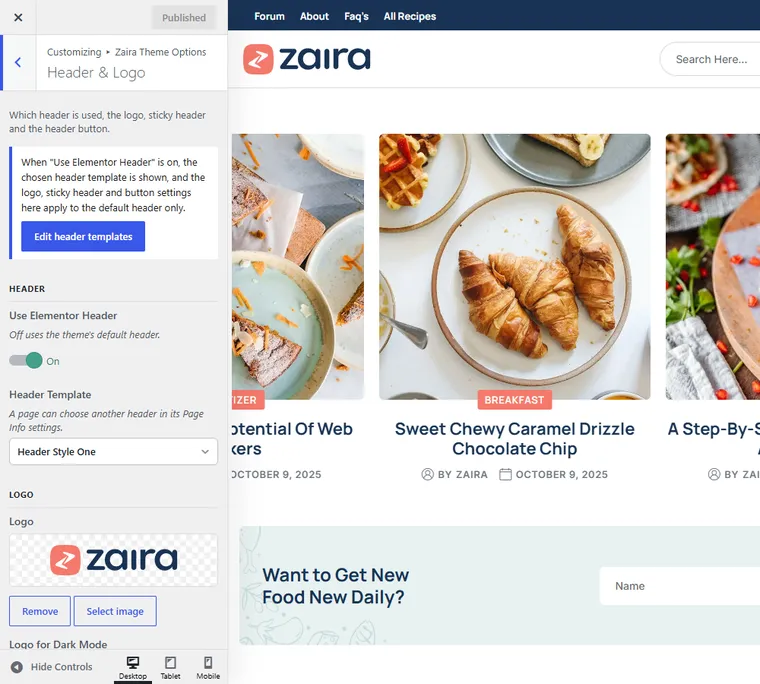
Choose them for one page
Edit the page in WordPress and find the Page Info box under the editor. Set Header (or Footer) to Elementor and pick a template. "Default" means the page follows the theme options.

- Page InfoThe template chosen on the page
- Theme optionsThe template chosen in the Customizer
- DefaultThe theme's own header or footer
The first one that is set wins. Posts, archives and search pages follow the theme options. A deleted or unpublished template is skipped.
Off-canvas panel
The side panel that opens from the header is an Elementor template named "Offcanvas" in Templates›Saved Templates. Edit it there, or choose another one in the Zaira Header widget under Header Offcanvas.
The bar under the header shows the page title and a breadcrumb trail. The trail comes from the Breadcrumb NavXT plugin; without it the bar is hidden.
- Whole site: Zaira Theme Options›Breadcrumb turns the bar on or off and sets its background color.
- One page: in the page's Page Info box, set Hide breadcrumb? to Yes.
- Trail texts: Settings›Breadcrumb NavXT.
- Turn on the switchIn Zaira Theme Options›General, turn on Show Light/Dark Switch. A switch appears next to the back to top button.
- Choose the starting modeTurn on Start in Dark Mode to open the site in dark. Each visitor's own choice is remembered in their browser.
- Set the dark logoAdd a light version of your logo as the dark mode logo (in the Zaira Header widget, or in Header & Logo for the default header).
In Elementor, sections and containers have a Dark Mode Background panel in their Style tab (background and border color), the Heading widget has a Dark Mode Text Color panel, and the Zaira widgets have dark versions of their colors.
Chapter 3
Content
Posts, images, pages, widgets, forms and the shop.
Writing a post
Go to Posts›Add New Post. Add a title, the text, a featured image and a category. Reading time is calculated for you.
- Post formats: Image, Gallery, Video, Audio and Quote each have their own look. For a gallery, add the images in the Gallery Images field; for a video or audio post, paste the link in the format link field below the editor.
- Category images: in Posts›Categories, edit a category and set its image. The Blog Category widget and the sidebar categories widget show it.
- Author box: shown under the post when the author has Biographical Info in Users›Profile. The Author Info fields there set the "Written by" text and the author's links (Facebook, X, LinkedIn, Instagram, YouTube).
Blog settings
Zaira Theme Options›Blog: sidebar on the left or right, which post meta to show, the Read More button and its text, the share links (Facebook, X, Pinterest, LinkedIn, WhatsApp) on single posts and the table of contents.
Table of contents
Every post with three or more headings gets a table of contents. You don't type the list anywhere: Zaira reads the headings you write in the post and builds the list each time the page opens. Readers see it in two places:
- A box in the article, after the first paragraph. Main sections are numbered, smaller ones (H3) sit under them, and readers can hide the list.
- A floating button in the bottom corner. It appears once the box has scrolled away, shows how much of the post has been read and opens the list with the current section marked. On phones the list opens from the bottom of the screen.
Where the list comes from
Each Heading 2 in the post becomes a numbered item, and each Heading 3 becomes a smaller item under the Heading 2 above it. The item's text is the heading's text and the order is the order of the headings. To change the list, change the headings in the post.
- ¶Opening paragraph
- H2Pick the right beans
- H2Froth milk without a steamer
- H3The jar method
- H3The whisk method
- H4A note on oat milk
- H2Pour and serve
- 01Pick the right beans
- 02Froth milk without a steamer
- The jar method
- The whisk method
- 03Pour and serve
| In the post | In the table of contents |
|---|---|
| Heading 2 | A numbered item: 01, 02, 03… |
| Heading 3 | A smaller item under the Heading 2 above it, when Headings is set to "H2 + H3" (the default). |
| Heading 1, 4, 5, 6 | Not listed. Bold text is not a heading either. |
A heading with the class no-toc | Not listed. The heading stays in the post. |
| Sidebar, widgets, comments | Not listed: only the post's own text counts. |
Adding a heading
- Block editor: add a Heading block (type
/heading, or start an empty line with##and a space for Heading 2,###for Heading 3) and pick H2 or H3 in the block toolbar. - Classic editor: click in the line and choose Heading 2 or Heading 3 in the Paragraph list of the toolbar.
- Elementor: a Heading widget with Content›HTML Tag set to H2 or H3, or the Paragraph list inside a Text Editor widget.
- Write with headingsSplit the post into parts with Heading 2, and use Heading 3 for smaller parts inside one of them. Short, clear headings make the best list.
- Choose the settingsIn Zaira Theme Options›Blog›Table of Contents: turn the box and the floating button on or off, pick H2 or H2 + H3, set how many headings a post needs (2 to 6), whether the box starts open or closed, and its title.
- Change one postIn the post editor, the Table of Contents box offers Default, Show and Hide. Show adds the list even to a short post with two headings.
- Links to a section: every listed heading gets an anchor made from its text, so "Pick the right beans" opens directly at
your-post-address/#pick-the-right-beans. A heading that already has an anchor (block editor: Advanced›HTML anchor) keeps it. - Where the box sits: after the first paragraph. When a post starts with a heading, the box goes above it.
- Posts only: pages and products don't get a list.
- See it in the demos: every demo post has its own headings and list. Open one in the editor and compare.
Give the heading the CSS class no-toc. Block editor: Advanced›Additional CSS class(es). Elementor: Advanced›CSS Classes. Classic editor: in the Text tab, write <h2 class="no-toc">. The list works with Arabic and other right-to-left languages and follows dark mode.
Page templates
When you edit a page, the Template list in Page Attributes offers Blog Grid (posts in two columns, eight per page) and Page Sidebar (page content with the blog sidebar).
Upload images at these sizes and they will look like the demos. WordPress makes the smaller copies the theme needs by itself.
| Image | Upload at | Notes |
|---|---|---|
| Featured image | 1200 × 800 px | Landscape, 3:2, like the demo posts. Cards crop it to 110 × 110, 280 × 200, 300 × 300, 400 × 400 or 600 × 600. |
| Category image | 500 × 500 px | Square. |
| Logo | SVG, or PNG about 300 px wide | Shown 147 px wide by default. |
| Site icon | 512 × 512 px | Square PNG. |
Images that were in your Media Library before you activated Zaira do not have the theme's sizes yet. Run a plugin such as Regenerate Thumbnails once to make them.
Open a page and click Edit with Elementor. The Zaira widgets are in the Zaira Addons group of the widget panel. Click a widget on the page to change its content in the Content tab and its look in the Style tab.
| Widget | Use it for |
|---|---|
| Blog Post | Post grids, lists and sliders in 18 layouts. |
| Horizontal Blog Post | Posts with the image beside the text, in 12 layouts, including a video popup layout. |
| Sidebar Blog Post | Small post lists for sidebars, in 9 layouts, including a Latest / Featured tabs layout. |
| Single Blog Post | One chosen post as a feature, in 13 layouts, optionally with a video. |
| Blog Category | Category cards with their images, in 3 layouts. |
| Section Title | Section headings in four styles, with an optional border. |
| Zaira Button | Buttons in two styles with the Zaira arrow; link to a page or any URL. |
| Zaira Header | The site header in six layouts (inside header templates). |
| Social List | Social icons, with or without names, in four layouts. |
| Menu List | Simple link lists, such as footer columns. |
| Team | Team members with photo, role and social links. |
| Gallery | An image slider in Instagram style. |
| Brand | The "Trending" headline ticker. |
| Icon Box | The coin price ticker of the Crypto demo. |
Choosing which posts a widget shows
Blog Post, Horizontal Blog Post and Sidebar Blog Post have a Blog Query section in the Content tab:
- Posts Per Page: how many posts the widget shows.
- Include Categories and Exclude Categories: limit the posts to some categories, or leave some out.
- Exclude Item: leave out chosen posts, for example the one already shown in a feature above.
- Offset: skip the first posts, so two widgets on one page do not repeat the same posts.
- Order By and Order: newest first, by title, at random, by comment count and more.
Single Blog Post shows one post that you pick in Select Post.
To reuse a section from a demo page, right-click it in Elementor, choose Save as a template, then insert it on another page from the template library.
Go to Appearance›Widgets. There are three kinds of widget areas:
- Blog Sidebar: the sidebar of the blog, posts, archives and search.
- Shop Sidebar: beside the products on the shop pages (with WooCommerce active, see Shop).
- Footer widget no. 1–4: used by the theme's default footer only; how many follows the footer's Widget Columns setting.
| Widget | What it shows |
|---|---|
| Zaira Sidebar Posts | Latest posts; the first one with its image. |
| Zaira Sidebar Categories | Chosen categories as image cards. |
| Zaira Sidebar Newsletter | A newsletter box with a title, text and a Mailchimp (MC4WP) form. |
| Zaira Social Sidebar | Facebook, X, Instagram, YouTube, LinkedIn and Pinterest buttons. |
| Zaira Info | An image, a short text and social icons, for an "about" box. |
Contact forms
The demos use Contact Form 7. Edit the forms in Contact›Contact Forms: the Contact Form (contact page), the Cta Form (name and e-mail rows on home pages and footers) and, on some demos, the Newsletter Form. Open the Mail tab of each form and check that messages go to your address.
Error and success messages are styled to match the theme: a red badge on each field that needs attention and a framed message under the form, in both left-to-right and right-to-left layouts.
The home page "Newsletter Form" and "Cta Form" are Contact Form 7 forms: they e-mail you the visitor's details. To add people to a Mailchimp list, use MC4WP as described below.
Mailchimp newsletter (MC4WP)
- Connect MailchimpInstall MC4WP, then enter your API key in MC4WP›Mailchimp.
- Check the formOpen MC4WP›Form, choose your list and note the shortcode, for example
[mc4wp_form id="123"]. - Use it in the widgetIn Appearance›Widgets›Blog Sidebar, paste that shortcode into the Mailchimp Shortcode field of the Zaira Sidebar Newsletter widget and save.
After a demo import the widget is already linked to the imported form, even when the form got a new ID on your site. If the form in the widget is deleted later, the widget shows your first MC4WP form instead of an error.
Install and activate WooCommerce, then import the Food demo for sample products and the Shop, Cart, Checkout and My account pages, or add your own products in Products›Add New Product.
- Products per row: Zaira Theme Options›Shop sets 1 to 4 on desktop and 1 to 4 on phones; tablets show 2.
- Cart in the header: the Zaira Header widget has a cart with a live count and total.
- Wishlist: with the WPC Smart Wishlist plugin active, a heart button appears on product cards.
- Shop sidebar: add widgets (product search, categories, price filter, top rated products…) to Appearance›Widgets›Shop Sidebar. They show beside the products on the shop and product category pages; with no widgets the products use the full width.
Product, cart, checkout and account pages are styled by the theme, and the shop styles load only on shop pages.
Chapter 4
Languages
Arabic and other right-to-left languages, and translating Zaira.
Zaira reads right to left as soon as your site language is a right-to-left language.
- Set the site languageGo to Settings›General›Site Language, choose العربية (or Hebrew, Persian, Urdu…) and save.
- Import an Arabic demo(optional) In Appearance›Import Demo Data the Arabic (RTL) demos are now listed first.
What changes on a right-to-left site:
- The whole layout is mirrored: menus, sliders, arrows and their animations, forms, the shop, the sidebar and the theme options panel.
- Arabic text uses Readex Pro for headings and Cairo for text. Both are stored on your server and downloaded only by pages that show Arabic.
- The theme, Zaira Core and the Breadcrumb NavXT texts are in Arabic (translations included).
- New Section Title, Button and Menu List widgets line up on the right by default.
The dashboard language of each user is set in Users›Profile; it changes the admin screens only. The direction of the website follows the Site Language.
The theme and Zaira Core are ready for translation. Arabic is included; for other languages, translate the texts yourself:
- Install Loco TranslateFrom Plugins›Add New Plugin.
- Translate the themeLoco Translate›Themes›Zaira, add your language and translate. Choose the "Custom" location so updates keep your translation.
- Translate Zaira CoreLoco Translate›Plugins›Zaira Core, same steps.
| Part | Text domain | Template file |
|---|---|---|
| Theme | zaira | wp-content/themes/zaira/languages/zaira.pot |
| Zaira Core | genixcore | wp-content/plugins/zaira-core/languages/genixcore.pot |
The texts of your pages and posts, including the demo content, are content: change them in the editor or in Elementor.
Chapter 5
For developers
Your own CSS and code, kept safe through updates.
For small style changes, add CSS in Appearance›Customize›Additional CSS. It is kept when you update the theme. Dark mode and right-to-left pages have their own classes, so you can style them separately:
/* Every page */
.my-box { background: #ffffff; }

/* Dark mode: the class is on <html> and <body> */
.tg-theme-dark .my-box { background: #0C1622; }

/* Right-to-left sites (Arabic, Hebrew…) */
.rtl .my-box { margin-right: 20px; }
To style one Elementor element, give it a class in Advanced›CSS Classes (for example my-box) and style that class here.
A child theme holds your own code and template changes, so a theme update never overwrites them. You only need one if you change PHP or template files.
- Get the child themeUse
zaira-child.zipfrom your ThemeForest download, or create a folderzaira-childwith a filestyle.cssthat starts with the lines below. - Upload and activateUpload the zip in Appearance›Themes›Add New Theme and activate Zaira Child. Zaira itself stays installed.
- Add your codePut PHP in a
functions.phpin the same folder. To change a template, copy it fromzairaintozaira-childat the same path and edit the copy.
/*
Theme Name: Zaira Child
Template: zaira
Version: 1.0.0
Text Domain: zaira-child
*/

/* Your CSS below */
No extra code is needed to load the styles: Zaira loads all of its own styles, then the child theme's style.css.
WordPress keeps the Customizer settings of each theme apart. On a site that already has its settings, the child theme starts with empty theme options (for example "Use Elementor Header" is off). Menus and widgets carry over. Activate the child theme first and then import, or copy the settings over with a plugin such as Customizer Export/Import.
Put these in your child theme's functions.php or in a code snippets plugin.
| Filter | What it changes |
|---|---|
zaira_social_share_networks | The share buttons on single posts: remove some, change one, or add your own (key => url, icon, label). |
zaira_header_template_idzaira_footer_template_id | The ID of the Elementor header or footer template used on the current page. Return 0 for the theme's default header or footer. |
zaira_eager_featured_images | How many featured images at the top of a page load at once instead of lazily (default 2). |
zaira_core_widget_max_posts | How many posts a post widget shows when its Posts Per Page field is empty (default 100). |
// No Pinterest button on single posts
add_filter( 'zaira_social_share_networks', function ( $networks ) {
	unset( $networks['pinterest'] );
	return $networks;
} );

// Another Elementor header on category pages (123 = the template's ID)
add_filter( 'zaira_header_template_id', function ( $id ) {
	return is_category() ? 123 : $id;
} );
The template ID is the number in the address bar when you edit the template (post=123).
Chapter 6
Care & help
Updates, speed, fixes for common problems and support.
Always update the theme and Zaira Core together, and make a backup first.
- Update the themeGo to Appearance›Themes›Add New Theme›Upload Theme, upload the new
zaira.zipand click Replace active with uploaded. - Update Zaira CoreAfter the theme update, Appearance›Install Plugins shows that Zaira Core needs an update. Update it there.
- Clear cachesClear any cache plugin and use Elementor›Tools›Regenerate CSS & Data.
From Zaira 1.x to 2.0
- Every saved setting, page and template is kept.
- The theme options move to Zaira Core's own panel, so the Kirki plugin is no longer needed; deactivate it after updating Zaira Core.
- Twitter icons become the X logo, and share links use x.com.
Zaira already loads its fonts from your own server, loads sliders and popups only on pages that use them, loads shop styles only on shop pages and lazy-loads images below the fold. To go further:
- Use a page cache plugin or your host's caching.
- Upload images at the size they are shown (see Image sizes) and compress them, as WebP where possible.
- Keep only the plugins you use.
- In Elementor›Settings›Performance, keep the performance features on.
The import stops or times out
Raise the PHP limits (see Requirements) and click Import again. Content that is already there is skipped.
Images are missing after the import
Your server could not download them from the live demo. Ask your host to allow outgoing HTTPS requests, then import again.
Pages show "not found"
Open Settings›Permalinks and click Save Changes.
The header or footer does not change
Check the page's Page Info box (it overrides the theme options), make sure the template is published, and clear your cache.
A post has no table of contents
The list needs three headings (Heading 2, or Heading 3 when "H2 + H3" is chosen). Check the post's Table of Contents box in the editor and the settings in Zaira Theme Options›Blog (see Table of contents).
A part of my post is missing from the table of contents
The list shows only real headings. Text that is just bold, or set as Heading 4, is not listed: change it to Heading 2 or Heading 3. Also check that the heading has no no-toc class (see Where the list comes from).
The table of contents still shows an old heading
The list is made from the saved post. Update the post, then clear your cache plugin so visitors get the new page.
The Elementor editor does not load
Raise the PHP memory limit to 256 MB (see Requirements). If it still spins, turn on Elementor›Tools›Safe Mode to find a plugin that conflicts.
The theme options are empty after activating a child theme
Each theme keeps its own Customizer settings. Copy them from Zaira with a plugin such as Customizer Export/Import (see Child theme).
No breadcrumb
Activate Breadcrumb NavXT, turn on Show Breadcrumb in the theme options and check the page's "Hide breadcrumb?" setting.
Old styles after an update
Clear your cache plugin, run Elementor › Tools › Regenerate CSS & Data, and reload the page in your browser.
The Arabic site is still left to right
Set the Site Language in Settings › General. The language in your user profile changes the dashboard only.
Icons show as empty squares
An optimization plugin may combine or delay the icon fonts. Exclude the theme's Font Awesome files from it and clear the cache.
No form in the sidebar newsletter
Activate Mailchimp for WP (MC4WP) and create a form; the widget then shows it (see Forms & newsletter).
A Zaira widget is missing in Elementor
Make sure Zaira Core 2.0 or newer is active in Plugins.
Still stuck? Contact us through the Support tab of Zaira on ThemeForest, or the contact form on our ThemeForest profile. To help us answer quickly, include:
- your purchase code,
- your site address and, if possible, a temporary login,
- your WordPress, PHP and Elementor versions,
- what you did, what you expected and what happened (a screenshot helps).
Support covers questions about the theme's features and fixing bugs. Custom design changes and third-party plugins are outside support.
Version 2.0 19 November 2026
- Update Zaira Core to 2.0 together with the theme.
- Full right-to-left support for Arabic, Hebrew, Persian and other RTL languages: mirrored styles, sliders, arrows and their hover animations, menus, WooCommerce pages, forms and the theme options.
- Arabic translation of the theme and Zaira Core; Arabic breadcrumb texts; Arabic fonts (Readex Pro and Cairo), self-hosted.
- Six Arabic (RTL) demos, listed first on Arabic sites.
- X (formerly Twitter): the X logo on every Twitter icon; share links use x.com.
- Theme options in Appearance › Customize › Zaira Theme Options, provided by Zaira Core: ten short sections, every saved setting kept; Kirki no longer needed.
- Contact Form 7 messages styled; one-row newsletter forms keep their size when a message appears.
- Speed: scripts load only on pages that use them, shop styles only on shop pages, self-hosted fonts, faster preloader, images loaded at the size shown.
- SEO: one H1 on every page, breadcrumb structured data, working share links.
- Accessibility: skip link, labels for icon buttons, keyboard support for menus and search.
- Demo import: correct links and images for every demo, forms set to the site language and domain, the sidebar newsletter linked to the imported Mailchimp form, WordPress sample content removed.
- New Shop Sidebar widget area; the Footer Menu location now shows in the default footer; the post widgets list only their real layouts.
- New table of contents for posts: a box in the article and a floating button with reading progress, settings in the Customizer and a switch on each post; works in Arabic and dark mode.
- Each demo post has its own article, with headings that match its title, in English and Arabic.
- Many fixes: header and footer settings of the blog and shop pages, dark mode switch, reading time in every language, WooCommerce buttons, WooCommerce templates updated.
Version 1.0 5 March 2025
- First release.
- UnderscoresGPLv2 or later
- BootstrapMIT
- Font Awesome Free 5.15.4Icons CC BY 4.0, fonts SIL OFL 1.1, code MIT
- Slick 1.8.1MIT
- Magnific Popup 1.1.0MIT
- TGM Plugin ActivationGPLv2 or later
- WP Bootstrap NavwalkerGPLv3
- Inter, Manrope, Readex Pro, CairoSIL OFL 1.1
- RTLCSSMIT
Images in the demos are for preview only and are not included with the theme.